September 15, 2026—5 min
GeoDynamics
1. Log in to the GeoDynamics portal at https://v5.intellitracer.be/
2. Select "Config" from the top menu
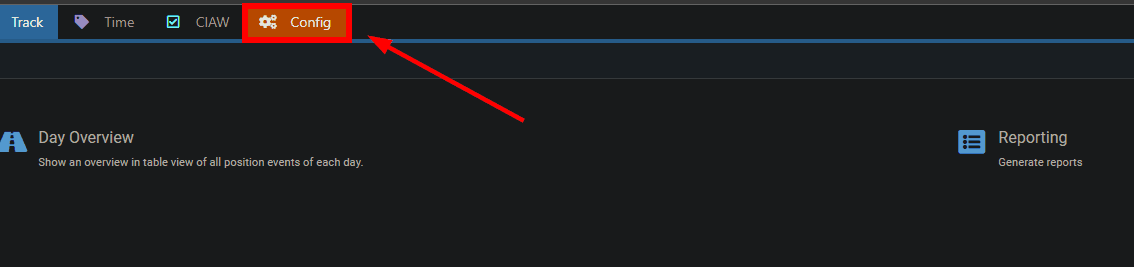
3. Click "Company"

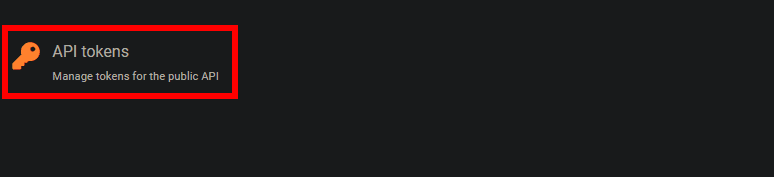
4. Select "API tokens"
5. Click "Add"
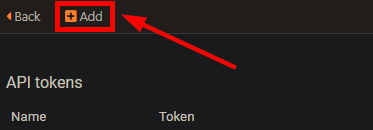
6. Enter "CO3" in the "Name" field and click "Save"

7. Go to the "Privileges" tab and click "Edit"
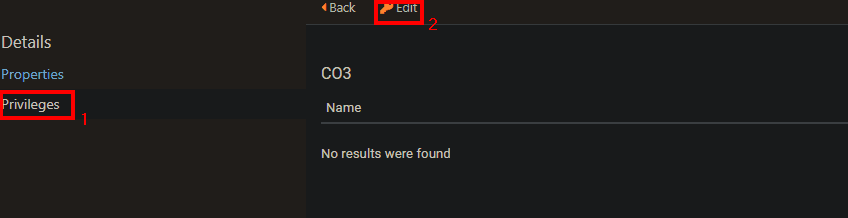
8. Select every privilege starting with "Api:" and click "Ok"
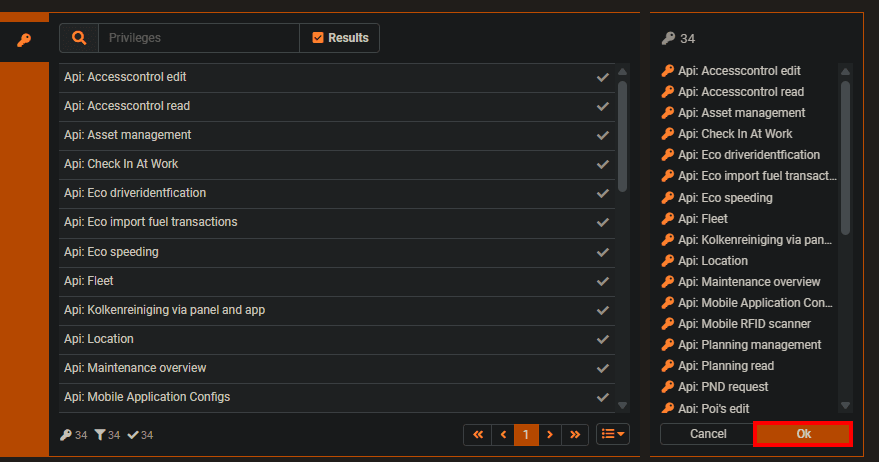
9. Go back to the "Properties" tab and copy the token using the orange copy icon

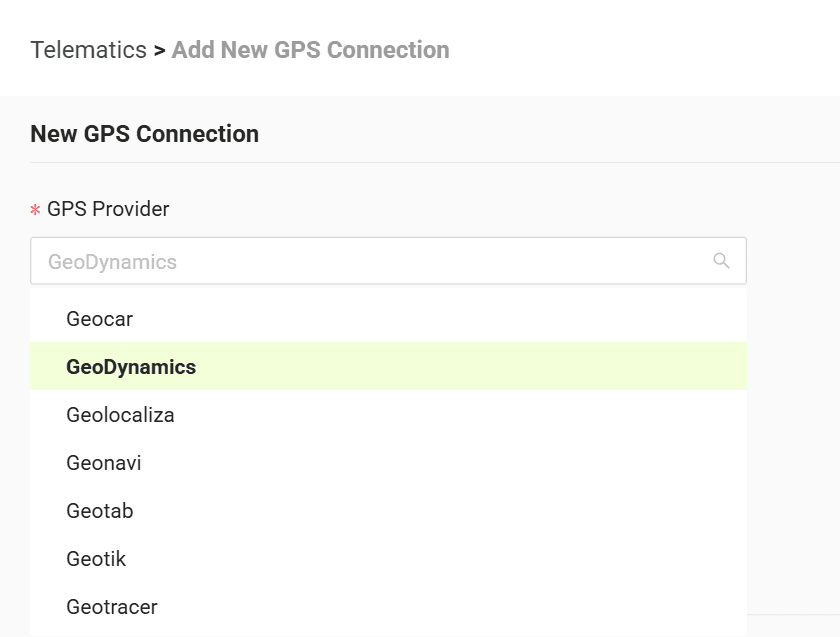
10. Go to the "Telematics" tab on the CO3 website and select "Add New GPS Connection" or click the link https://track.co3.io/#/telematic-accounts/create
11. Select your GPS provider from the list
12. Paste the copied token into the "API Key" field
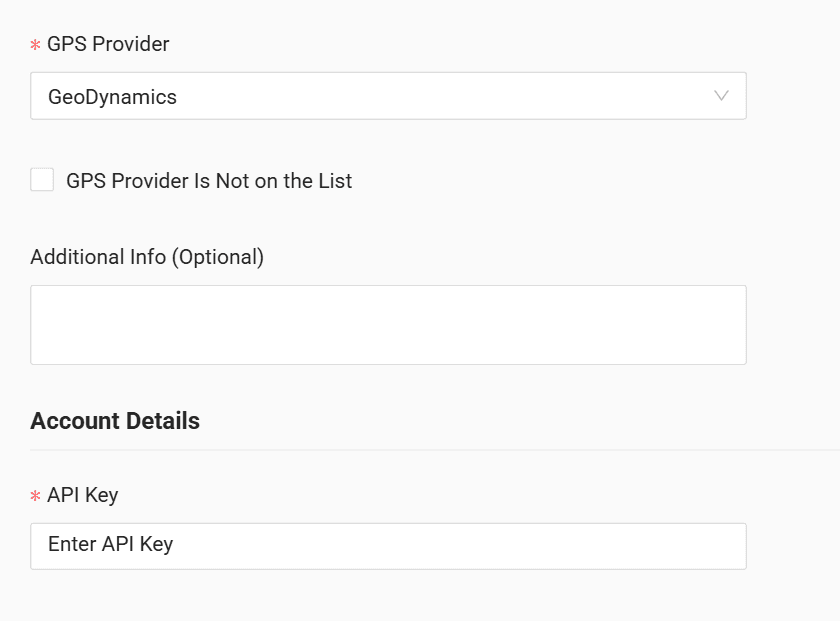
13. Click "Submit"
14. If the access data is correct, the account configuration will be successful
Do you have questions?
Contact us at carrier@co3.io