February 26, 2026—5 min
Automile
1. Sign in to Automile and open "Settings" (gear icon)

2. In profile settings, enable "Activate Developer Features" and save

3. In the "Developer" section, select "API clients"
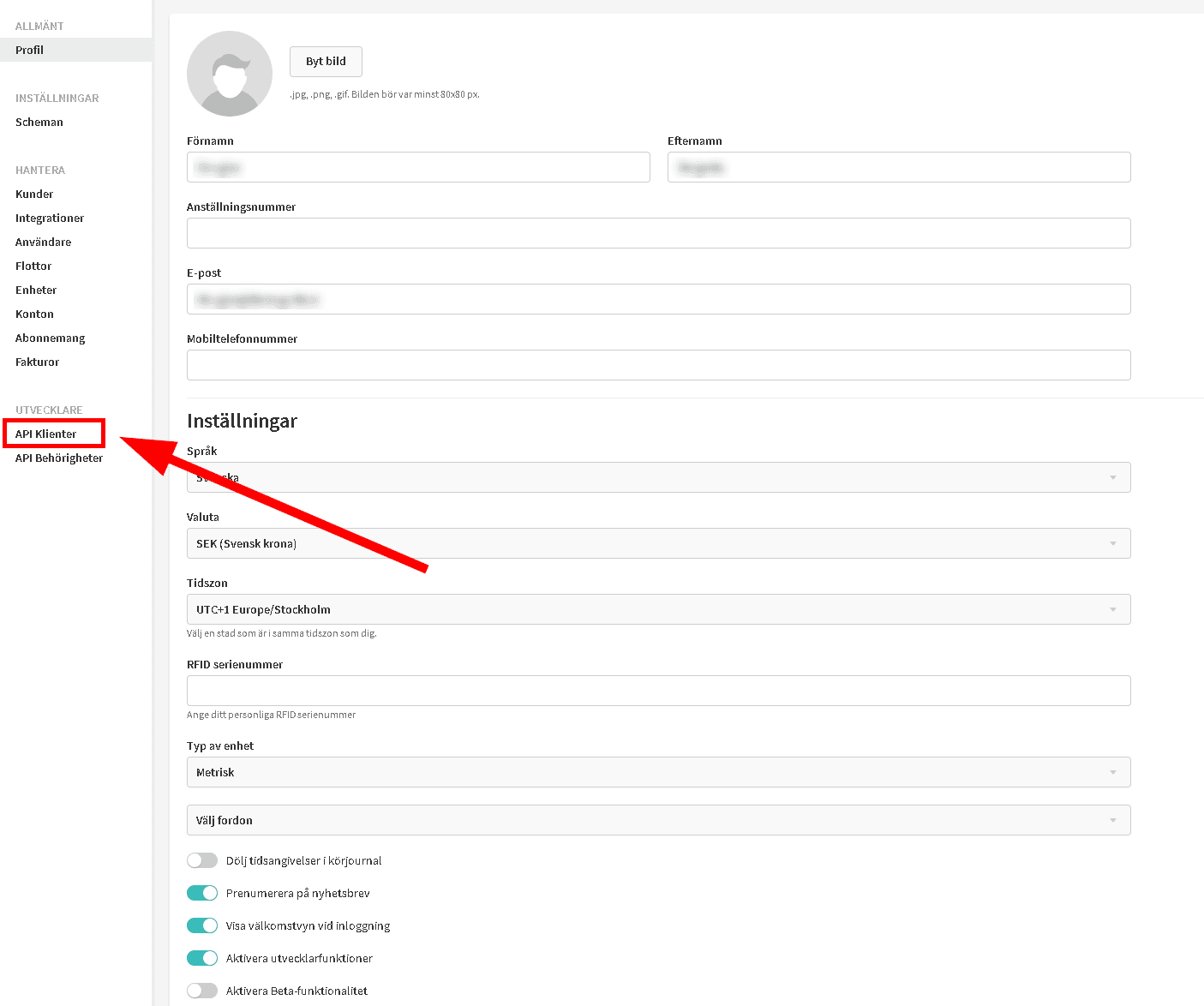
4. Click "Add new"
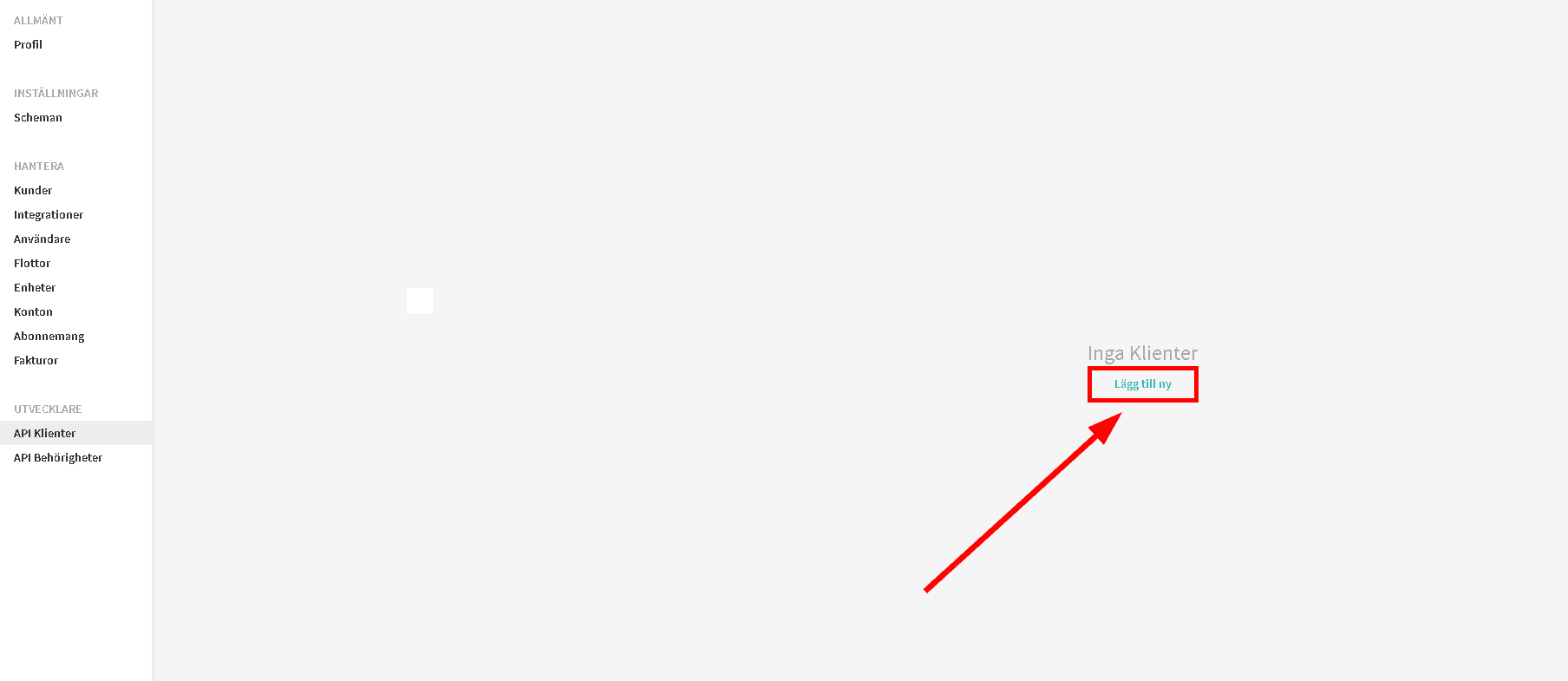
5. Enter app name and client identifier, check the read permissions and save

6. Copy the generated client key

7. Go to the "Telematics" tab on the CO3 website, choose "Add New GPS Connection" or click https://track.co3.io/#/telematic-accounts/create
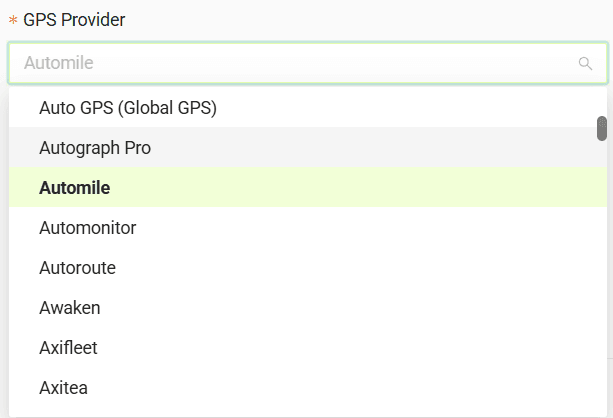
8. Select Automile from the list
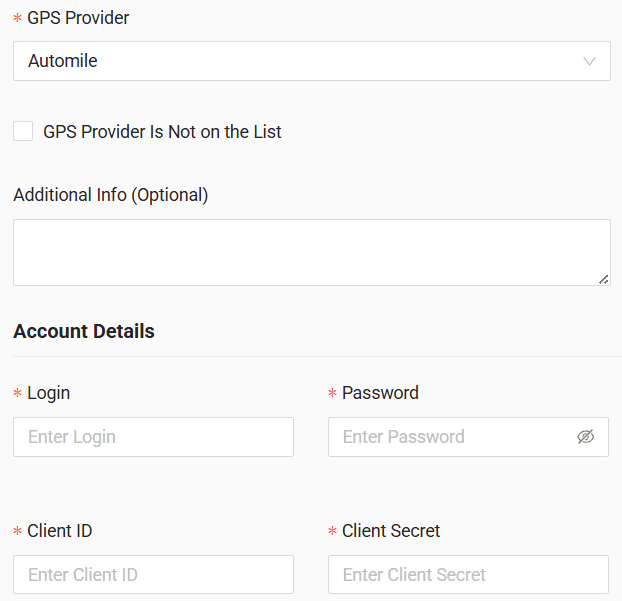
9. In the form, enter login, password, client ID, and client secret
10. Click "Submit"
11. If the access data is correct, the account configuration will be successful
Do you have questions?
Contact us at carrier@co3.io